
Workspace & Users
Settings is where you configure every aspect of your workspace — from company details and user management to pipeline stages, custom fields, and notification preferences.
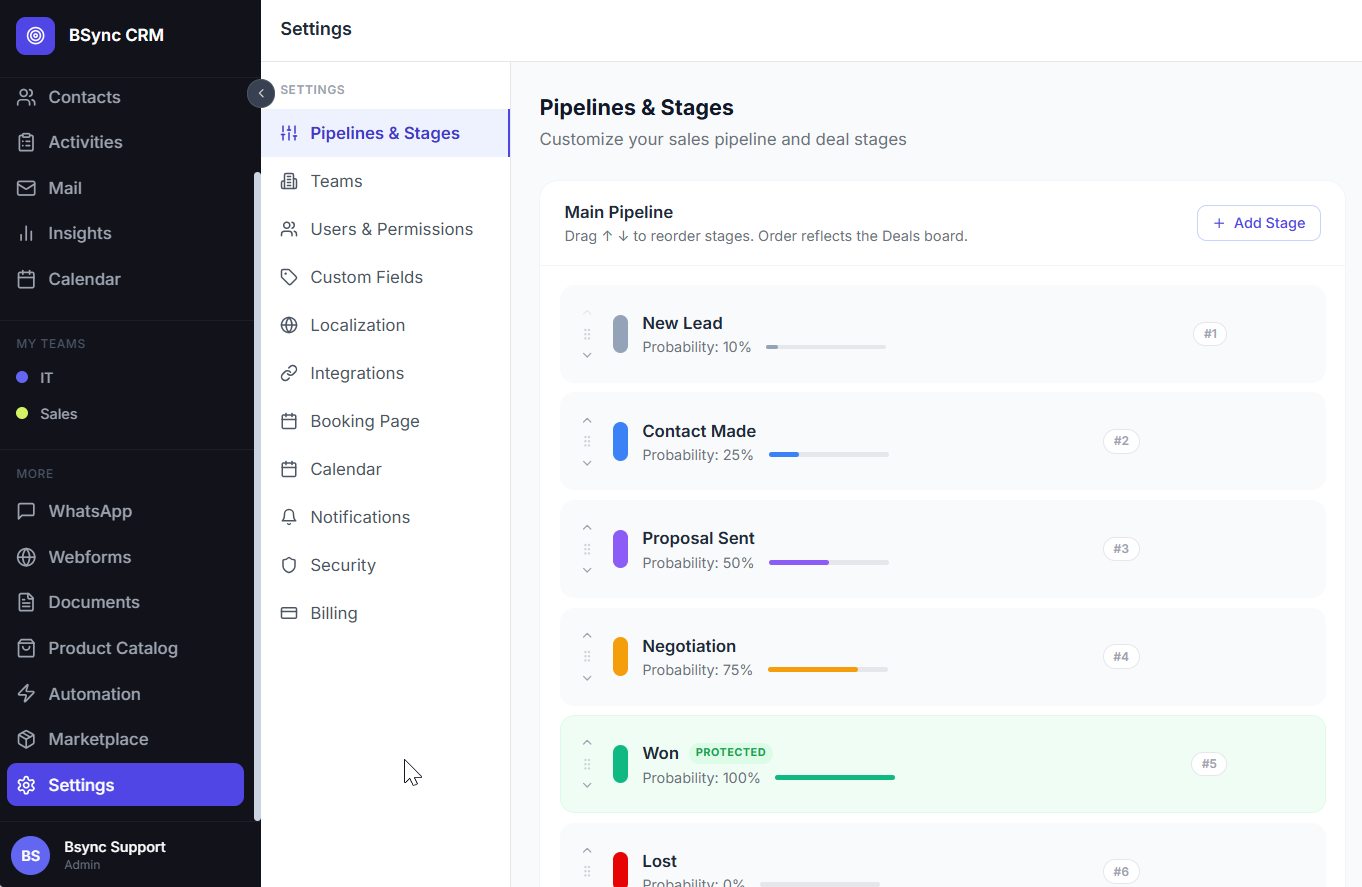
Workspace Settings
Go to Settings → Workspace to configure the basics:
| Setting | Description |
|---|---|
| Company name | Displayed throughout the CRM and in proposal documents |
| Logo | Uploaded logo used in proposals and email signatures |
| Timezone | Used for activity due dates, booking availability, and reporting |
| Currency | Default currency for deal values and proposals |
| Date format | DD/MM/YYYY or MM/DD/YYYY |
| Industry | Used for benchmarking in Insights |
Terminology
Go to Settings → Terminology to rename core CRM labels to match your industry:
| Default term | Example alternative |
|---|---|
| Deal | Opportunity, Project, Job |
| Lead | Prospect, Enquiry |
| Pipeline | Sales Board |
| Stage | Phase |
| Contact | Client |
Changes apply globally across the CRM immediately.
User Management
Inviting Users
- Go to Settings → Users.
- Click + Invite User.
- Enter the user's email address.
- Select a role:
| Role | Permissions |
|---|---|
| Admin | Full access: all modules, settings, billing, user management |
| Manager | All modules and reports; cannot change billing or delete the workspace |
| Member | Own deals and contacts only; no access to other users' deals unless shared |
- Optionally assign the user to a Team.
- Click Send Invite.
The user receives an email invitation with a link to set their password and access the workspace.
Managing Existing Users
From the Users list you can:
- Edit role — change between Admin, Manager, and Member
- Deactivate — removes the user's access without deleting their data. Their deals and contacts remain and can be reassigned.
- Reassign — move all of a user's deals, leads, and contacts to another user before deactivating.
Admins cannot deactivate themselves
You must have at least one other Admin in the workspace before you can deactivate your own account.
Password and Security
Each user manages their own password via Profile → Change Password. Admins can trigger a password reset email for any user from the Users list.
Two-Factor Authentication (2FA) can be enforced workspace-wide by Admins from Settings → Security → Require 2FA.
Teams
Teams group users for shared pipeline visibility and reporting.
Creating a Team
- Go to Settings → Teams.
- Click + New Team.
- Enter a team name (e.g. "London Sales", "Enterprise Accounts").
- Add team members from the user list.
- Save.
Managers can filter the Pipeline Board, Leads Inbox, and Reports by team.
Notification Preferences
Go to Settings → Notifications to control which events trigger in-app and email notifications:
| Event | Default |
|---|---|
| New lead assigned to me | On |
| Deal stage changed | On |
| Activity due today | On |
| Proposal viewed | On |
| Proposal accepted | On |
| Sequence step failed | On |
| New form submission | On |
| New WhatsApp message | On |
Toggle individual events on or off. Changes apply immediately.