
Inbox & Compose
Once your email account is connected, the Mail module gives you a full inbox experience inside Bsynced CRM — with AI-powered writing tools built in.
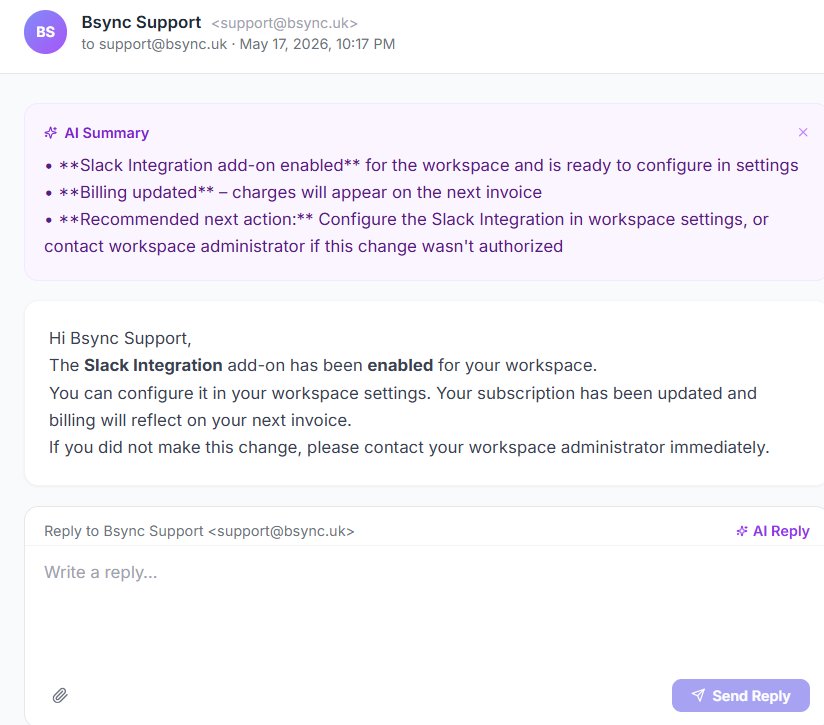
Inbox Layout
The Mail module has three tabs:
| Tab | Description |
|---|---|
| Inbox | All received emails |
| Sent | All emails you have sent from the CRM |
| Bin | Deleted emails |
Each email in the list shows:
- Sender name and address
- Subject line
- Preview of the first line
- Date and time received
- Read / unread indicator (bold = unread)
- Tracking indicators (opened, clicked) for sent emails
Reading an Email
Click any email in the list to open it in the reading pane on the right. The reading pane renders full HTML emails including images and formatting.
At the top of the reading pane:
- Reply — open the compose window pre-filled with the reply-to address and quoted original
- Forward — forward the email to another recipient
- Mark as Read / Unread — toggle read status
- Delete — move to Bin
- AI Summary — click to get an instant AI-generated summary of the email content (great for long email chains)
Multi-Select Actions
Hold Ctrl (or Cmd on Mac) and click multiple emails to select them. Then:
- Mark as Read
- Mark as Unread
- Delete (moves to Bin)
- Move to folder (if applicable)
Searching Emails
Use the search bar at the top of the inbox to search by sender, subject, or body content. Results are returned in real time.
Composing a New Email
Click Compose (top-right of the Mail module) to open the compose window.
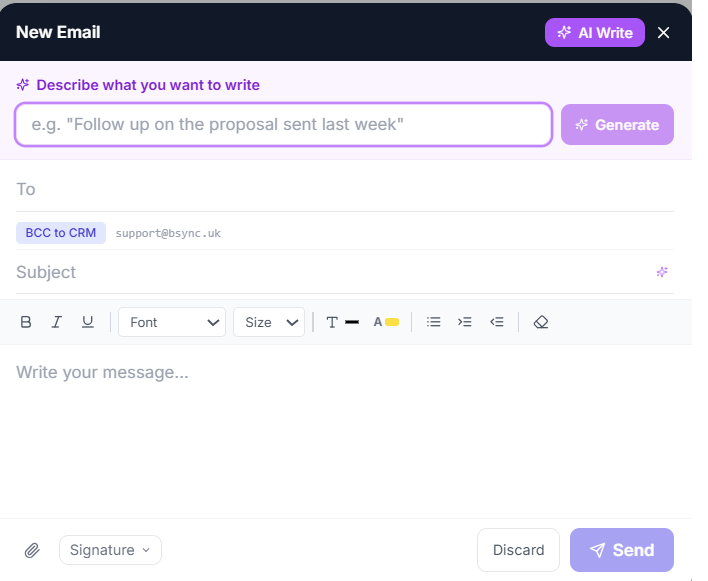
Compose Window Features
| Feature | How to use |
|---|---|
| To / CC / BCC | Type or select contacts from the CRM |
| Subject | Enter manually or use AI Subject |
| Rich text editor | Bold, italic, lists, links, inline images |
| AI Write | Enter a brief prompt and the AI generates a full draft |
| AI Subject | Generates a subject line from the email body |
| Signature | Automatically appended from your saved signature |
| Attach files | Click the paperclip icon to attach files |
| Email templates | Insert a saved template with one click |
| Maximise | Expand the compose window to full screen |
Using AI Write
- Click AI Write in the compose toolbar.
- Enter a short prompt, e.g. "Follow-up email after demo call, mention pricing proposal next week".
- The AI generates a complete, professional email draft.
- Edit the draft as needed and send.
Using AI Subject
- After writing (or generating) the email body, click AI Subject.
- The AI reads the email content and suggests a compelling subject line.
- Accept or edit the suggestion.
Syncing Your Inbox
The inbox syncs automatically. To force an immediate sync, click the Sync button (circular arrow icon) in the Mail toolbar. New emails received in Gmail or your IMAP account will appear within seconds.
Link emails to deals
When replying to an email that is associated with a contact linked to a deal, the email is automatically logged in the deal's Email tab. No manual linking required.