
Managing Contacts
The Contacts module is your central database of people and organisations. Every contact can be linked to one or more deals, leads, and communication threads.
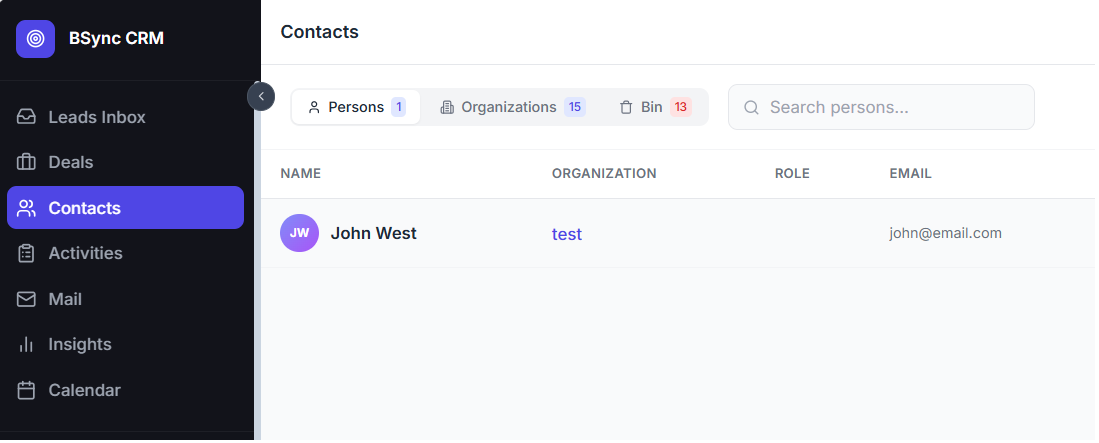
Contact List
The contacts list shows all contacts in your workspace with:
- Name and avatar
- Email address
- Phone number
- Company / Organisation
- Linked deals — number of deals this contact is associated with
- Last activity — the most recent interaction date
Searching and Filtering
Use the search bar to find contacts by name, email, or phone number. Apply filters:
- Company — filter by organisation name
- Tag — filter by label
- Assignee — filter by the responsible team member
- Has deal — show only contacts with at least one linked deal
Adding a Contact
- Click + Add Contact.
- Fill in the contact form:
- First name and last name (required)
- Email address
- Phone number
- Company / Organisation
- Job title
- Address
- Social links (LinkedIn, Twitter)
- Tags
- Notes
- Click Save.
Contact Detail Panel
Clicking a contact opens their detail panel on the right side of the screen. This panel shows:
- Profile information — all contact fields, editable inline
- Linked Deals — all deals this contact appears in, with stage and value
- Email history — all emails sent to or received from this contact
- WhatsApp — link to the WhatsApp conversation if one exists
- Activity log — chronological feed of every interaction
- Notes — free-text notes specific to this contact
Importing Contacts
- Click Import (top-right of the Contacts list).
- Download the CSV template to see the required columns.
- Fill in your data and upload the file.
- Map the CSV columns to CRM fields.
- Review duplicates (matched by email address) — choose to skip, update, or create new.
- Click Import to confirm.
Supported CSV columns
Name, First Name, Last Name, Email, Phone, Mobile, Company, Job Title, Address, City, Country, Tags (comma-separated), Notes.
Exporting Contacts
- Apply any filters you want to narrow the export.
- Click Export.
- A CSV file containing all visible contacts is downloaded.
Merging Duplicate Contacts
If you have two contact records for the same person:
- Open one of the duplicates.
- Click More → Merge.
- Search for the duplicate contact.
- Choose which record is the primary (the one to keep).
- Confirm — all linked deals, emails, and activities from both records are merged into the primary contact.
Merging is permanent
Once merged, the secondary contact record is deleted. This cannot be undone.