
Leads Inbox
The Leads Inbox is where all new prospects land before they become active deals. It separates unqualified enquiries from your pipeline so your deal board stays clean and focused.
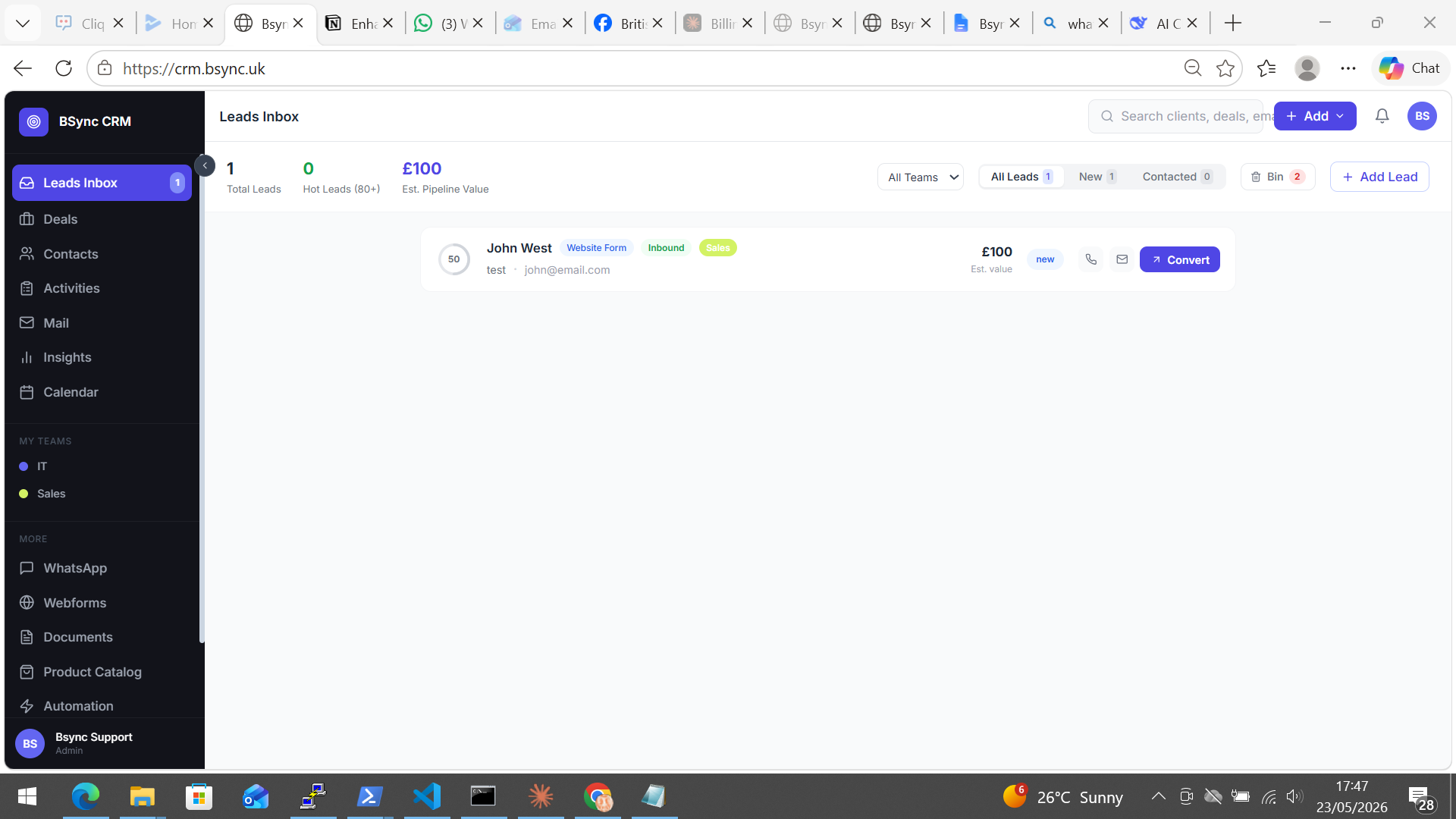
Inbox Layout
The Leads Inbox shows a list of lead cards with:
- Lead name and contact details
- Lead score — a numeric score calculated from engagement signals
- Source — where the lead came from (web form, manual, import, etc.)
- Inbound / Outbound badge — whether you reached out or they came to you
- Date received — when the lead was captured
- Assigned to — the team member responsible
Tabs
| Tab | Description |
|---|---|
| Inbox | Active leads awaiting action |
| Bin | Discarded leads (can be restored) |
Lead Actions
Each lead card has a set of quick actions:
- Email — compose an email to the lead directly from the inbox
- Call — initiate a Twilio call if calling is enabled
- Note — add a note to the lead record
- Convert — convert the lead to a deal (see Converting Leads)
- Bin — move the lead to the Bin tab for later review or permanent deletion
Searching and Filtering
Use the search bar to find leads by name or email. Apply filters:
- Score — filter by score threshold
- Source — filter by origin (web form, manual, import)
- Assignee — filter by team member
- Inbound / Outbound — toggle type
Lead Signals
Lead signals are behavioural indicators that influence the lead score and highlight high-priority leads:
| Signal | Description |
|---|---|
| Email opened | The lead opened an email you sent |
| Link clicked | The lead clicked a link in your email |
| Form submitted | The lead filled in a web form |
| Replied | The lead replied to an email |
| Multiple submissions | The lead submitted a form more than once |
Signals appear as icons on the lead card so your team can prioritise at a glance.
Sequences for Leads
If the Automation add-on is enabled, you can enrol a lead into a sequence — a series of automated emails, notifications, and wait steps designed to nurture the lead until they are ready to convert.
To enrol:
- Open the lead detail panel.
- Click Add to Sequence.
- Select the sequence.
- Confirm the start date.
Restoring binned leads
Go to the Bin tab, find the lead, and click Restore to move it back to the Inbox. Permanently deleted leads cannot be recovered.