
Integrations
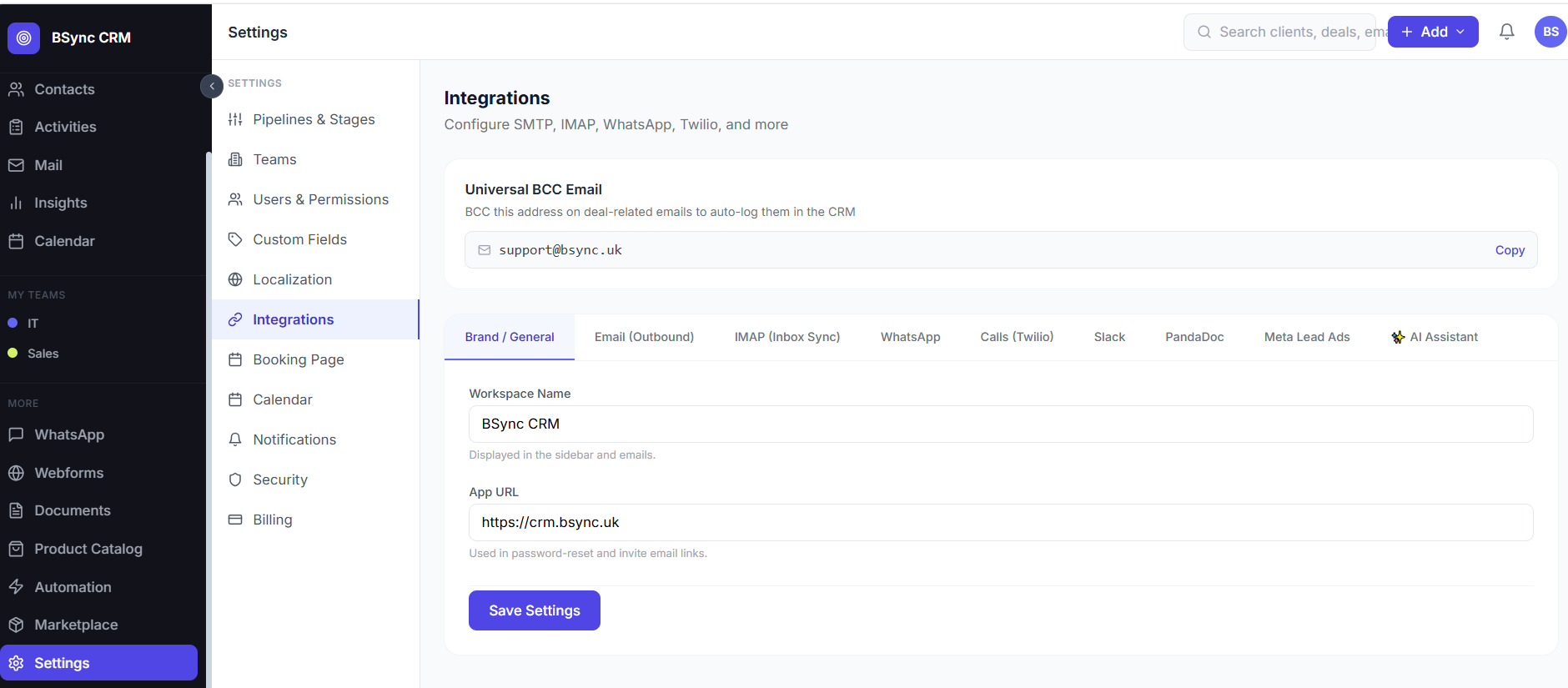
Bsynced CRM connects to a range of external services. All integration settings are per-workspace — each workspace has its own independent credentials.
Gmail OAuth 2.0
Connect a Google/Gmail account to use as the email sender and inbox for the workspace.
Steps: See Mail Setup for full instructions.
Settings stored: OAuth refresh token (encrypted), connected email address, sync status.
IMAP / SMTP
Connect any email account using IMAP (receive) and SMTP (send) protocols.
Steps: See Mail Setup for full instructions.
Settings stored: IMAP host, port, encryption type; SMTP host, port, encryption type; username; password (AES-256 encrypted).
WhatsApp Business API
Connect a WhatsApp Business API phone number to enable WhatsApp messaging.
Steps: See WhatsApp Setup for full instructions.
Settings stored: Phone Number ID, Business Account ID, access token, webhook verify token.
Twilio (Calling)
Enable browser-based phone calling for your team.
Setup
- Go to Settings → Integrations → Twilio.
- Enter:
- Account SID — found in your Twilio Console dashboard
- Auth Token — found in your Twilio Console dashboard
- Twilio Phone Number — a purchased Twilio number in E.164 format (e.g. +447700900000)
- Click Test Connection.
- Click Save.
Once connected, team members see a Call button on contact and lead cards.
Slack
Receive CRM event notifications in a Slack channel.
Setup
- Go to Settings → Integrations → Slack.
- Click Connect to Slack.
- Authorise the Slack app in your Slack workspace.
- Select the channel to send notifications to.
- Click Save.
Configuring Slack Notifications
After connecting, choose which events trigger a Slack notification:
- New lead created
- Deal moved to a specific stage
- Proposal accepted or declined
- Activity overdue
- New form submission
Google Calendar
Required for the Booking Scheduler. See Booking Setup.
Microsoft Outlook / Office 365
Required for Booking Scheduler calendar sync. See Booking Setup.
reCAPTCHA
Protect your web forms from spam submissions.
Setup
- Register your site at google.com/recaptcha.
- Choose reCAPTCHA v3.
- Add your CRM domain to the allowed domains list.
- Copy the Site Key and Secret Key.
- Go to Settings → Integrations → reCAPTCHA.
- Paste both keys and save.
- Enable reCAPTCHA on individual forms in the Web Forms builder (Form Settings → Enable CAPTCHA).
Zoom
Integrate Zoom for automatic meeting link generation in the Booking Scheduler.
Setup
- Go to Settings → Integrations → Zoom.
- Click Connect Zoom Account.
- Authorise access in the Zoom OAuth screen.
- Once connected, select Zoom as the location type in your Meeting Types.
Credential isolation
All integration credentials are stored per-workspace and encrypted at rest. No workspace can access another workspace's API keys or tokens. If you are a platform Admin, you can audit which workspaces have active integrations from the Admin Panel.