
Add-on Catalogue
The Marketplace is where you enable or disable optional features (add-ons) for your workspace. Each add-on unlocks a specific capability that is not included in the base CRM.
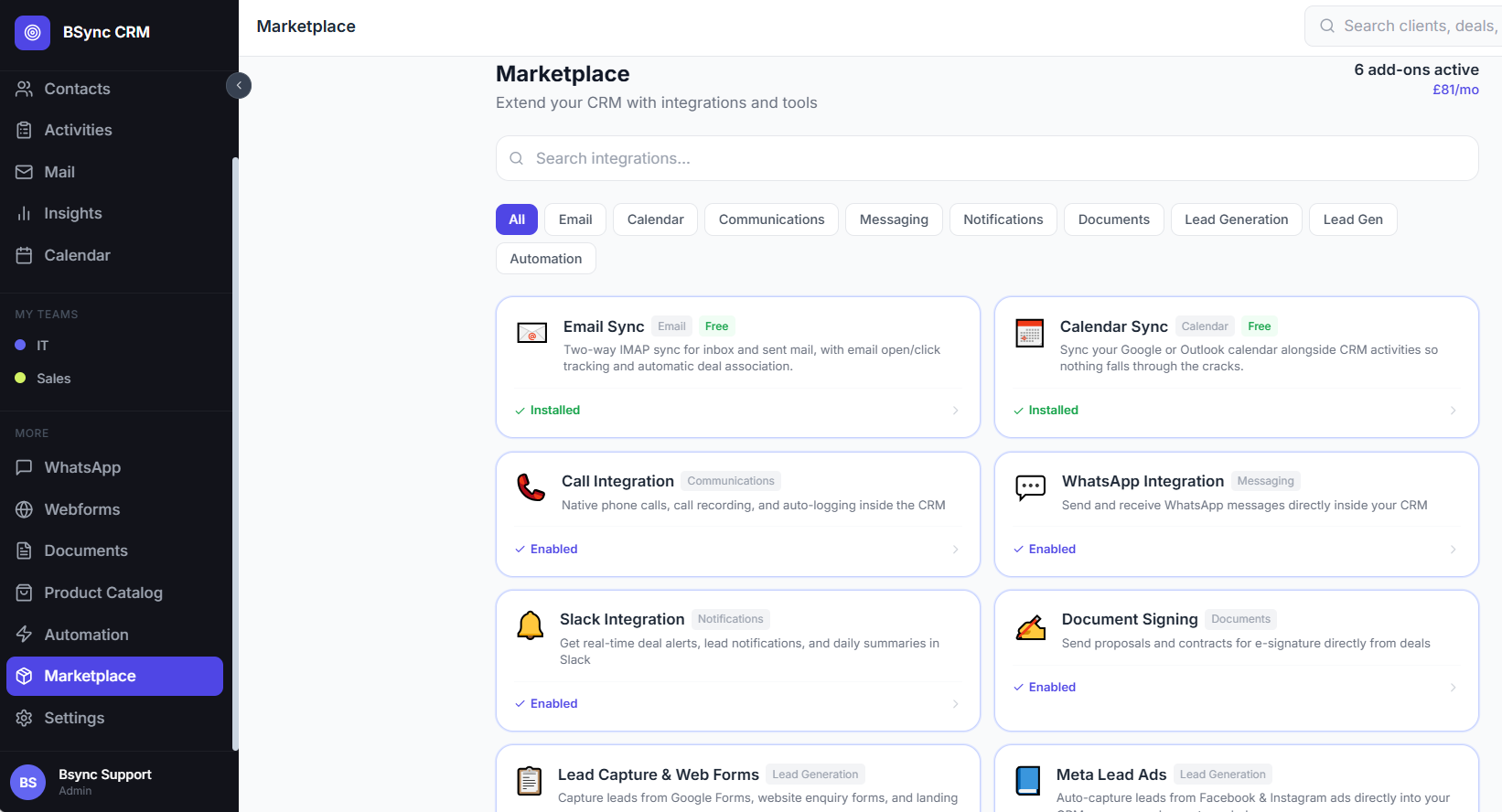
Accessing the Marketplace
Go to Marketplace in the sidebar. You must have an Admin role to enable or disable add-ons.
Available Add-ons
WhatsApp Messaging
Description: Send and receive WhatsApp Business messages from within the CRM. Includes conversation inbox, template management, broadcast messaging, and contact linking.
Requires: WhatsApp Business API credentials (Meta).
Unlocks: WhatsApp module in the sidebar, WhatsApp tab in deal and contact panels.
Proposals & E-Signatures
Description: Build professional proposals from your product catalogue and send them for electronic signature. Track opens, views, acceptances, and declines.
Unlocks: Documents module, Proposals tab in deals, Product Catalogue in Settings.
Automation Sequences
Description: Create multi-step automated workflows triggered by CRM events. Includes email steps, wait steps, notification steps, stage change steps, tag steps, and condition branches.
Unlocks: Automation module in the sidebar.
Booking Scheduler
Description: Share a booking link with prospects and let them self-schedule meetings based on your real calendar availability. Integrates with Google Calendar and Microsoft Outlook.
Requires: Google Calendar or Outlook calendar connection.
Unlocks: Booking module in the sidebar, merge tag in sequences.
Twilio Calling
Description: Make and receive phone calls from within the CRM using Twilio. Calls are logged automatically with duration, outcome, and notes.
Requires: Twilio account SID, auth token, and a Twilio phone number.
Unlocks: Call button on contact and lead cards, call log in activities.
Slack Integration
Description: Receive CRM notifications in your Slack workspace — new leads, deal stage changes, proposal accepted alerts, and more.
Requires: Slack workspace and an incoming webhook URL.
Unlocks: Slack notification step in Sequences, Slack settings in Settings → Integrations.
AI Assistant
Description: AI-powered email writing, subject line suggestions, and email AI summarisation in the Mail module and compose windows.
Unlocks: AI Write and AI Subject buttons in compose, AI Summary button in the email reading pane.
Web Forms
Description: Build custom lead capture forms and embed them on your website. Includes Google Forms integration and auto-conversion of submissions to leads.
Unlocks: Web Forms module in the sidebar.
Insights & Reports
Description: Advanced reporting including pipeline metrics, revenue forecast, goal tracking, at-risk deal analysis, email tracking, activity reports, and proposal insights.
Unlocks: Insights module in the sidebar with all sub-reports.
Enabling an Add-on
- Go to Marketplace.
- Find the add-on you want to enable.
- Click Enable.
- If the add-on requires credentials (e.g. Twilio, WhatsApp), you will be redirected to the relevant Settings page to enter them.
- Once credentials are saved, the add-on is fully active and its features appear in the sidebar or relevant modules.
Disabling an Add-on
- Go to Marketplace.
- Find the enabled add-on.
- Click Disable.
- Confirm. The module is removed from the sidebar. All existing data (contacts, sequences, proposals) is preserved and will reappear if the add-on is re-enabled.
Data is not deleted
Disabling an add-on does not delete any data associated with it. Proposals, sequences, and WhatsApp conversations remain in the database. If you re-enable the add-on later, everything is restored.
Per-Workspace Add-ons
In a multi-tenant environment, add-ons are enabled per workspace. The platform Admin can control which add-ons are available in the Marketplace for each workspace from the Admin Panel → Workspace Management screen.