
Goals & Activity Insights
Track your team's performance against revenue targets and activity quotas using the Goals and Activity insights sections.
Goals
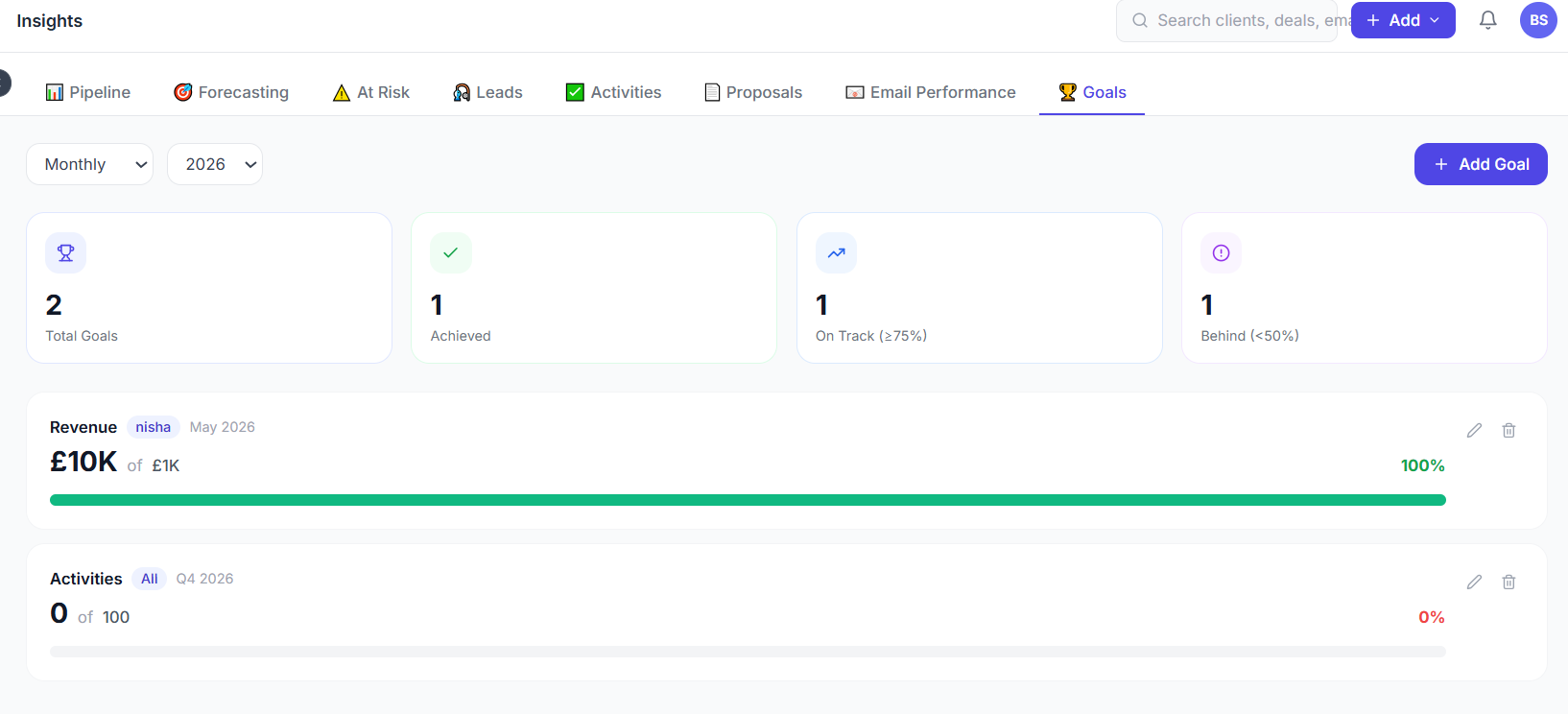
The Goals section lets you define targets and track progress against them in real time.
Creating a Goal
- Go to Insights → Goals.
- Click + New Goal.
- Configure the goal:
| Field | Options |
|---|---|
| Goal type | Revenue (Closed Won), Deals created, Deals won, Activities completed |
| Target value | Numeric target (e.g. £100,000 revenue) |
| Period | Monthly, quarterly, or custom date range |
| Assignee | Individual team member or whole team |
- Click Save.
The goal immediately begins tracking against live CRM data.
Goal Progress View
Each goal card shows:
- Progress bar — visual indicator of completion percentage
- Achieved so far — current value towards the target
- Remaining — gap between current and target
- Trend line — showing whether you are ahead or behind pace
- Projected outcome — extrapolation of current rate to end of period
Goal History
Past periods' goals are archived and accessible from the Historical tab. Compare performance across months or quarters to identify trends.
Use goals in forecast
Enable the goal target line on the Forecast chart (toggle in the chart settings) to see your quota overlaid on the revenue forecast bars. This gives your sales team a clear visual of how much weighted pipeline they need to hit their number.
Activity Insights
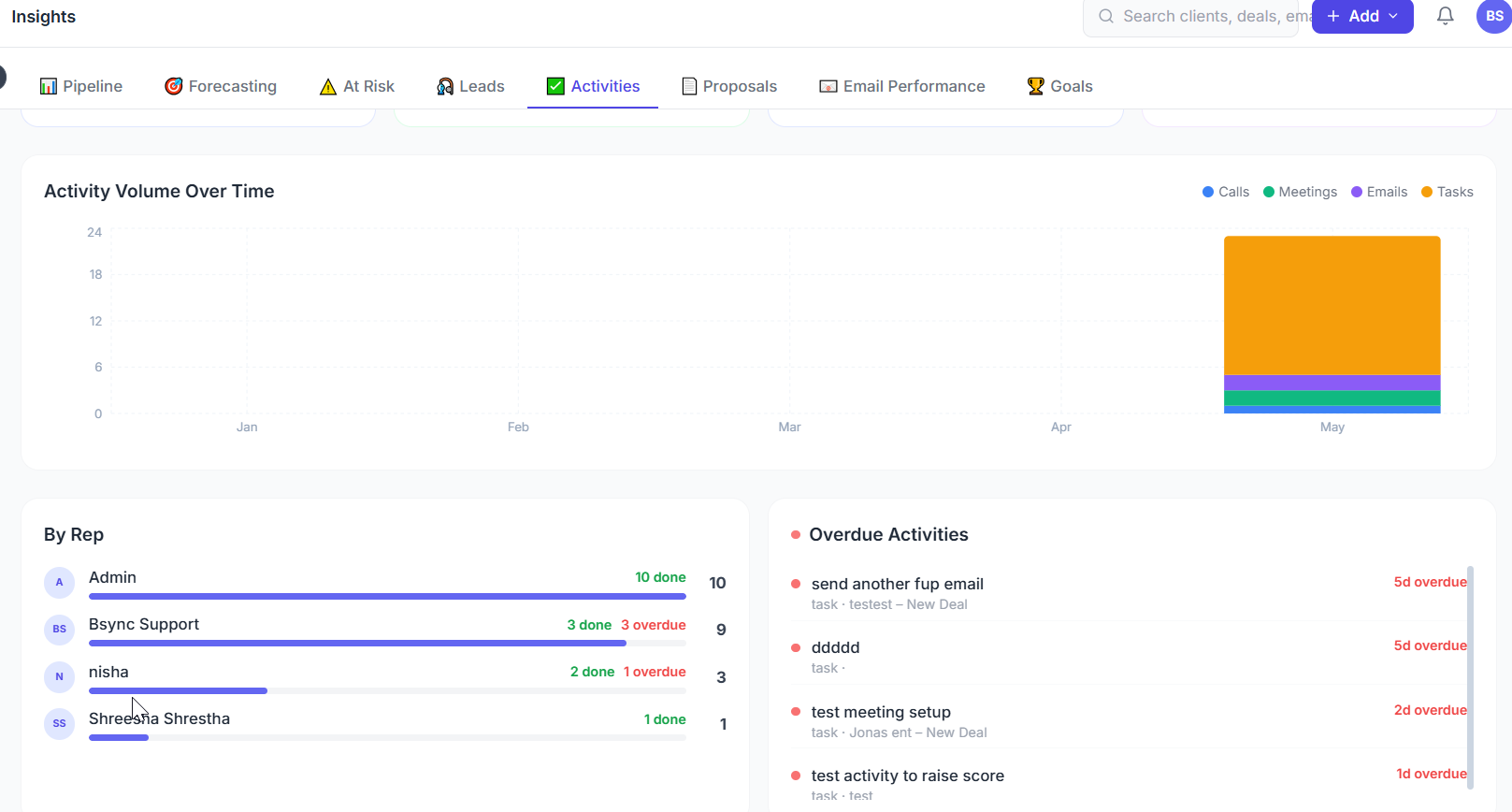
The Activity report shows you how much sales activity is happening — calls made, emails sent, meetings booked, and tasks completed.
Metrics Displayed
| Metric | Description |
|---|---|
| Activities completed | Total count in the period |
| By type | Breakdown: calls, emails, meetings, tasks |
| By team member | Individual productivity comparison |
| Completion rate | % of planned activities actually completed |
| Overdue activities | Activities past their due date not yet completed |
Filters
Filter the activity report by:
- Date range — focus on a specific period
- Activity type — see only calls, only meetings, etc.
- Assignee — review an individual's activity
Activity vs. Outcome Correlation
The activity insights page includes a correlation table showing which activity types are most associated with deals moving to the next stage or being won. This helps coaches understand what high-performing reps do differently.
Calendar View
The Activities module (accessible from the sidebar) offers a dedicated calendar view of all scheduled activities.
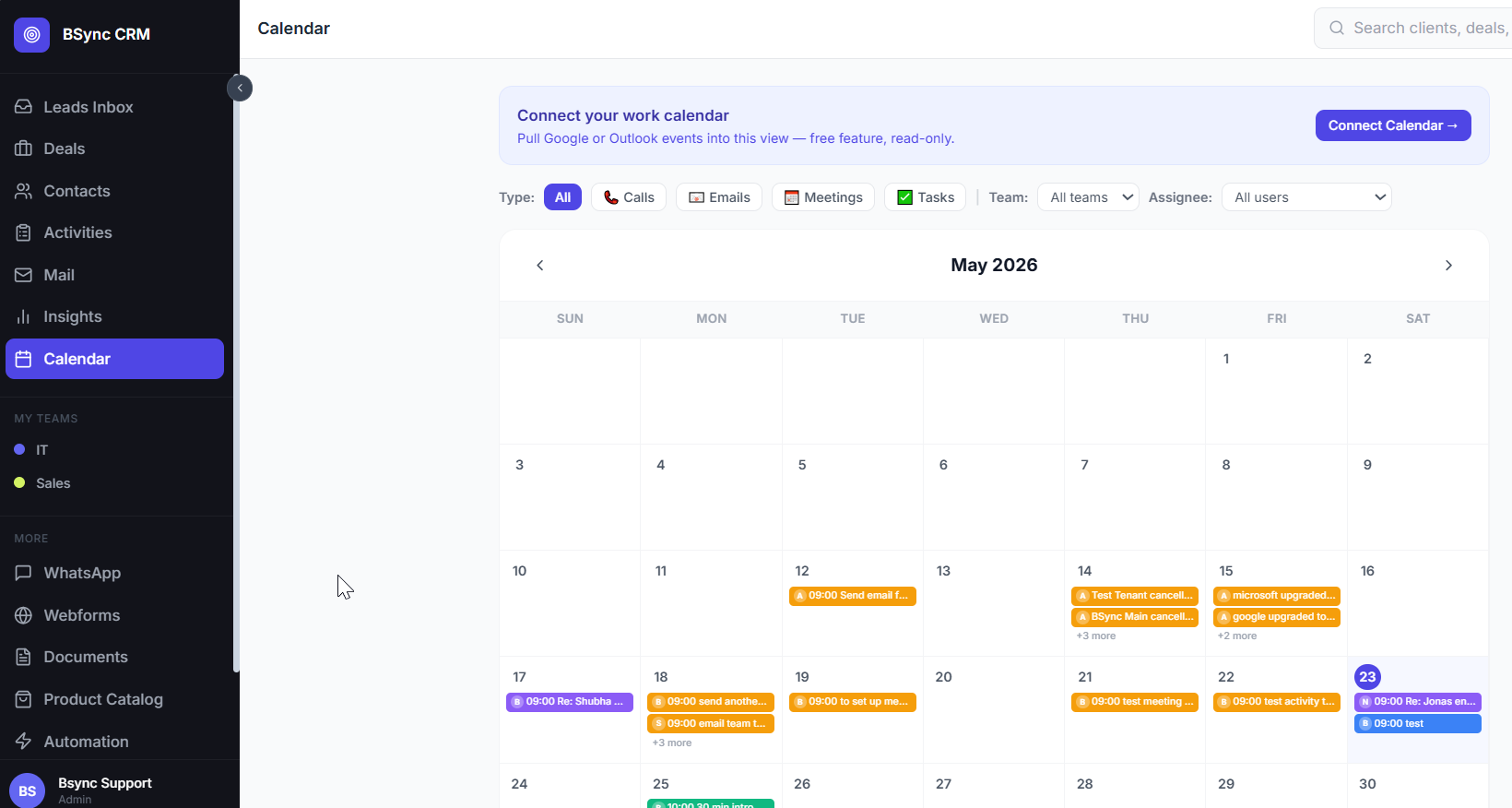
Switch between:
- Month — full month grid with activity dots
- Week — week grid with time slots
- Day — single-day schedule view
Click any activity on the calendar to view or edit it. Drag an activity to a new date to reschedule it.
Unsaved changes warning
If you edit an activity form and try to navigate away without saving, the CRM will prompt you to confirm. Always click Save before closing the activity panel.
Activities List
The list view (accessible via Activities in the sidebar) shows all activities in a sortable, filterable table:
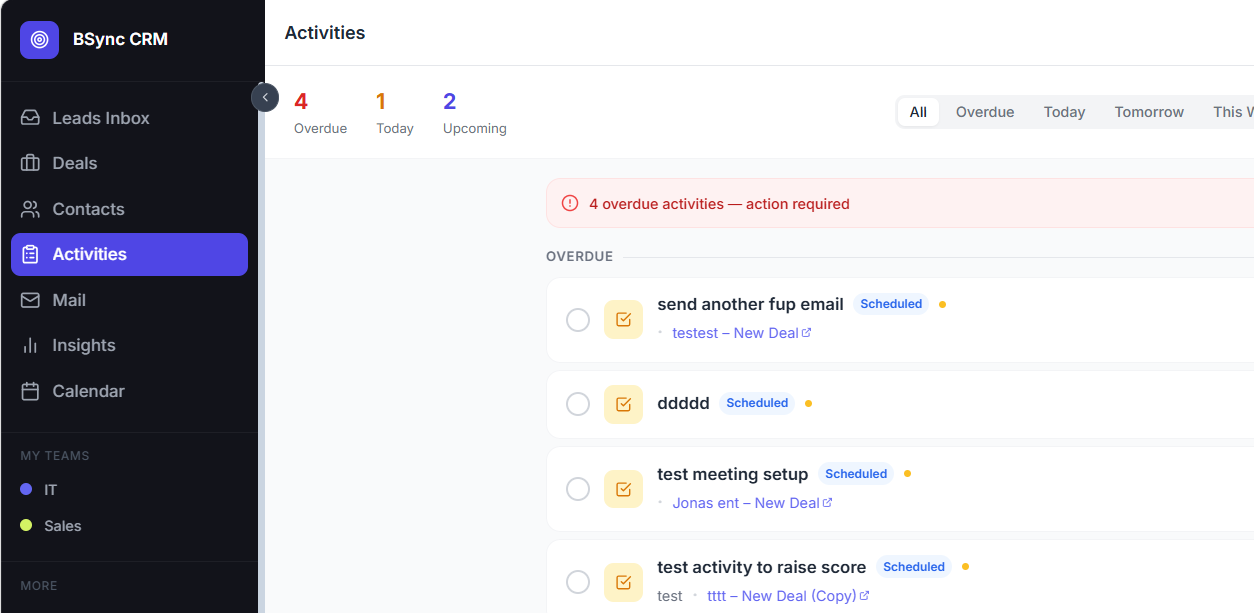
Sort by due date, type, assignee, or status. Filter to show only overdue, upcoming, or completed activities.