
Mail Setup (Gmail OAuth / IMAP)
Bsynced CRM includes a built-in email inbox. You can connect any email account using either Gmail OAuth 2.0 (recommended for Google Workspace users) or IMAP / SMTP (for all other providers).
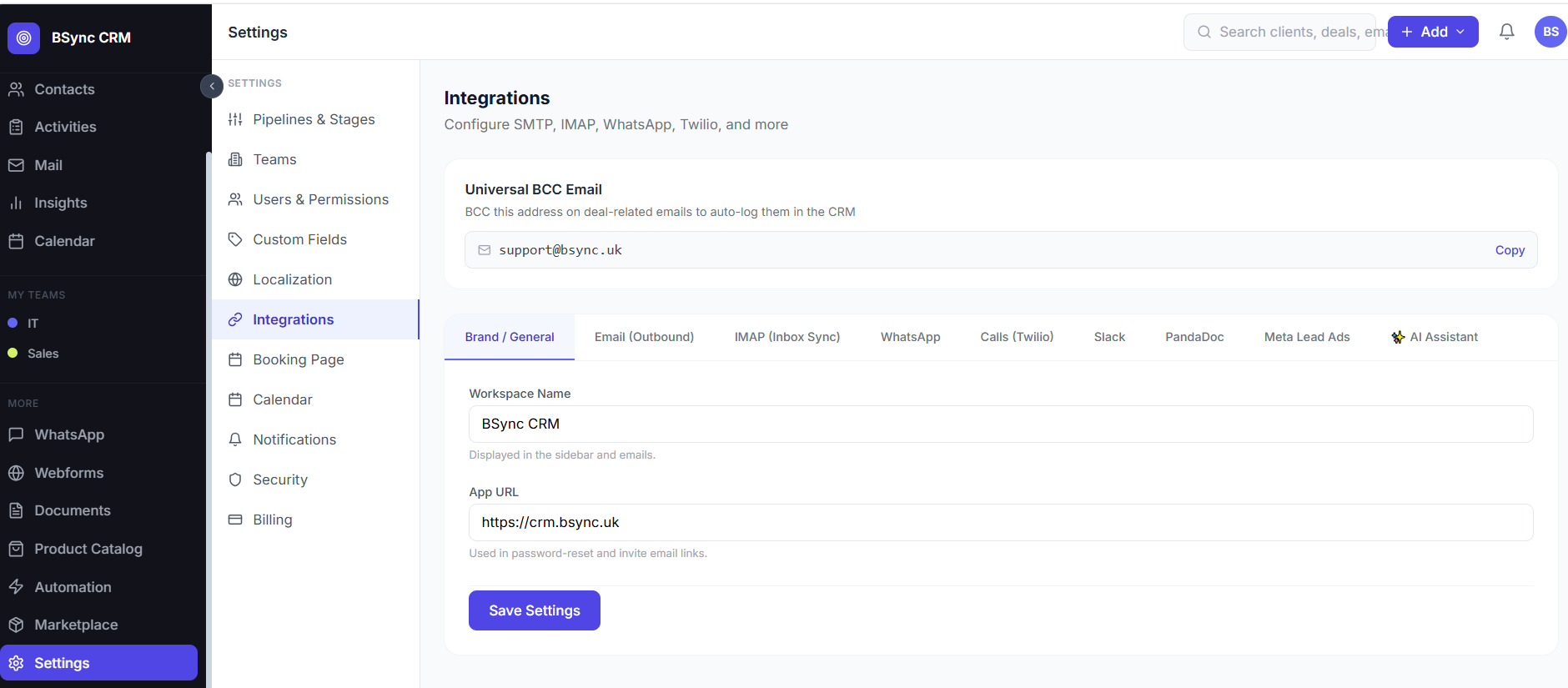
Option 1 — Gmail OAuth 2.0
Gmail OAuth is the simplest way to connect a Google account. It does not require your password and automatically stays in sync.
Setup Steps
- Go to Settings → Integrations → Gmail.
- Click Connect Google Account.
- A Google sign-in window opens. Sign in with the Gmail or Google Workspace account you want to connect.
- Grant the requested permissions (read and send email).
- You are redirected back to the CRM. The connection status shows Connected.
What Gets Synced
- Inbox, Sent, and Bin (Trash) folders are synced.
- New emails arriving in Gmail appear in the CRM Mail inbox within a few minutes.
- Emails sent from the CRM appear in your Gmail Sent folder.
Google Workspace users
If you use Google Workspace (formerly G Suite) with a custom domain, the setup is identical. Use your @yourcompany.com address when signing in.
OAuth approval
If your Google Workspace admin has restricted third-party app access, ask them to allow Bsynced CRM in the Google Admin console under Security → API controls → App access control.
Option 2 — IMAP / SMTP
IMAP/SMTP works with any email provider: Microsoft Outlook, Office 365, Yahoo Mail, custom domain email, and more.
Setup Steps
- Go to Settings → Integrations → IMAP.
- Enter the following details:
| Field | Example |
|---|---|
| Your name | Jane Smith |
| Email address | jane@yourcompany.com |
| IMAP Host | imap.yourprovider.com |
| IMAP Port | 993 (SSL) or 143 (STARTTLS) |
| SMTP Host | smtp.yourprovider.com |
| SMTP Port | 465 (SSL) or 587 (STARTTLS) |
| Username | jane@yourcompany.com |
| Password | Your email password or app password |
- Click Test Connection. The CRM will verify that both IMAP (receive) and SMTP (send) can connect successfully.
- Click Save if the test passes.
App Passwords
Many providers require an app-specific password rather than your account password when two-factor authentication is enabled:
- Gmail — Generate at myaccount.google.com/apppasswords
- Outlook / Office 365 — Generate at account.microsoft.com/security
- Yahoo — Generate at account.yahoo.com/security
Common IMAP Settings
| Provider | IMAP Host | SMTP Host | IMAP Port | SMTP Port |
|---|---|---|---|---|
| Gmail | imap.gmail.com | smtp.gmail.com | 993 | 587 |
| Outlook / Hotmail | outlook.office365.com | smtp.office365.com | 993 | 587 |
| Yahoo | imap.mail.yahoo.com | smtp.mail.yahoo.com | 993 | 587 |
Per-User vs. Shared Mailbox
Each user connects their own email account under Settings → Integrations. This means emails sent by User A come from User A's address. If you want a shared mailbox (e.g. sales@company.com), connect that account to each user who should send from it.
WARNING
Per-workspace SMTP/IMAP credentials are stored securely and isolated between workspaces. One workspace cannot access another workspace's email settings.